



















Create variations from Google Sheets
Introducing Layerre's native Google Sheets integration. Import data from Google Sheets and generate hundreds of variations of your Canva template.
Connect a spreadsheet, point each layer at a column, and every row becomes its own design. Prefer to type a few values by hand? Manual is right there too. Sheets import is included on the Starter plan and above.
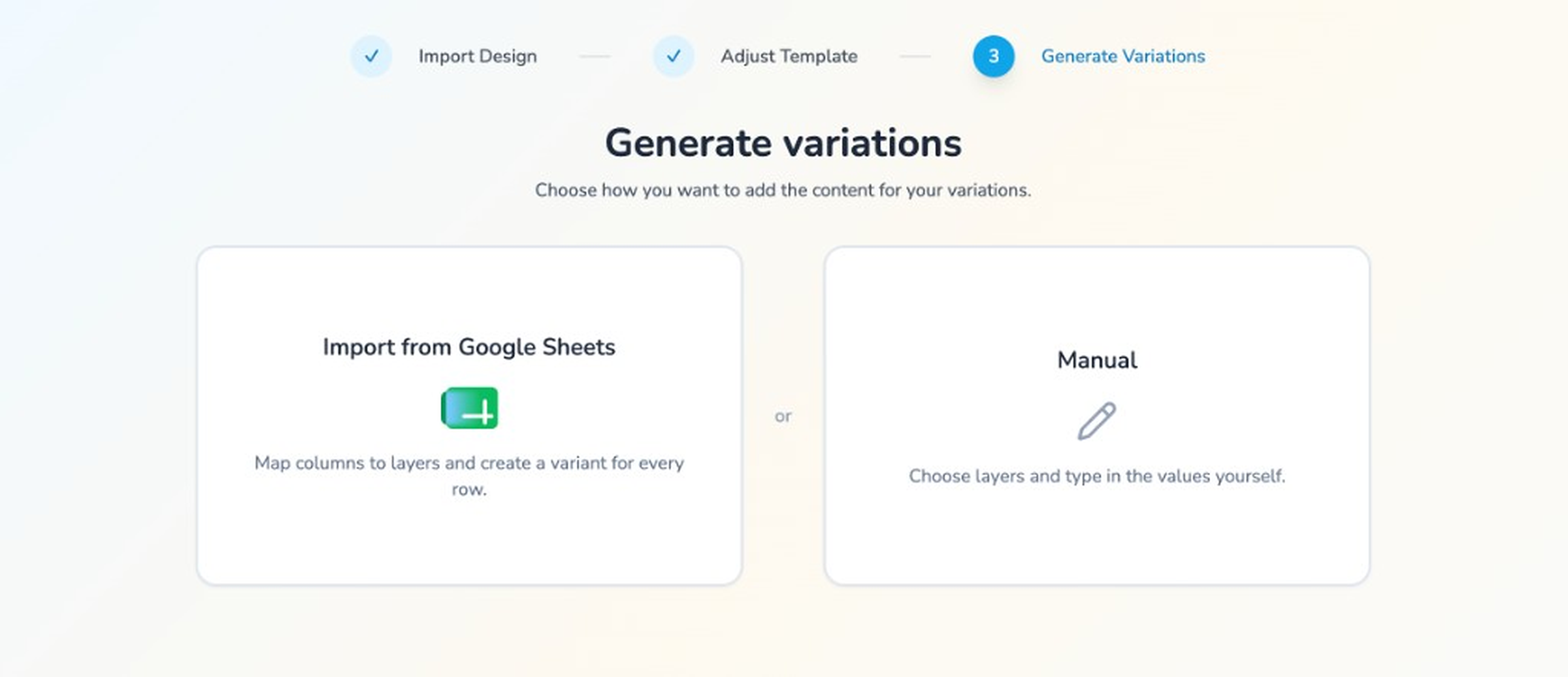
On Generate variations, pick a source:
- Import from Google Sheets maps columns to layers and creates a variant for every row.
- Manual lets you choose layers and type the values yourself.
Start from your template
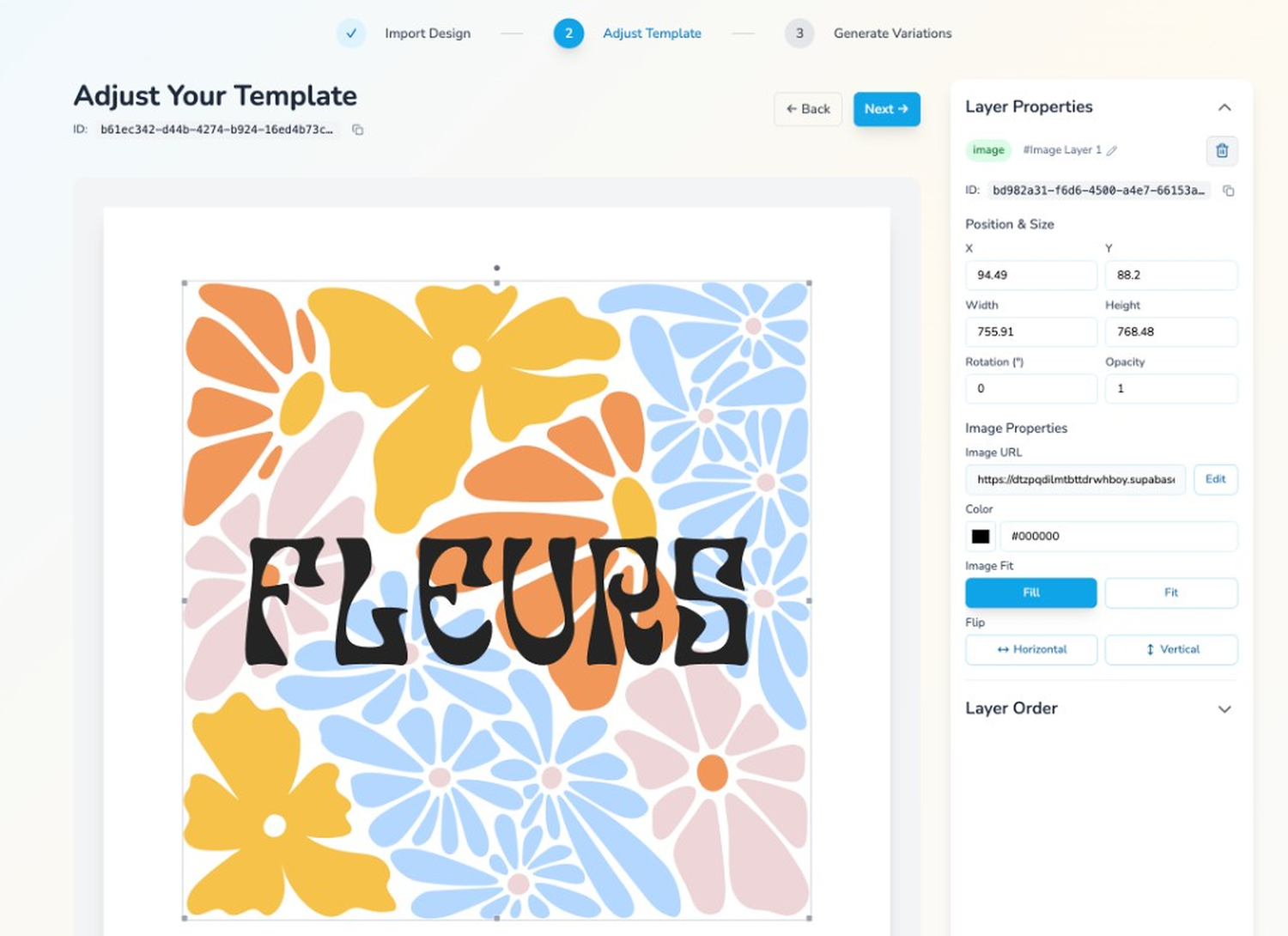
Import the Canva design and adjust layers the same way you always do. In this example the template has an image layer and a text layer. Those are the layers the sheet will fill.
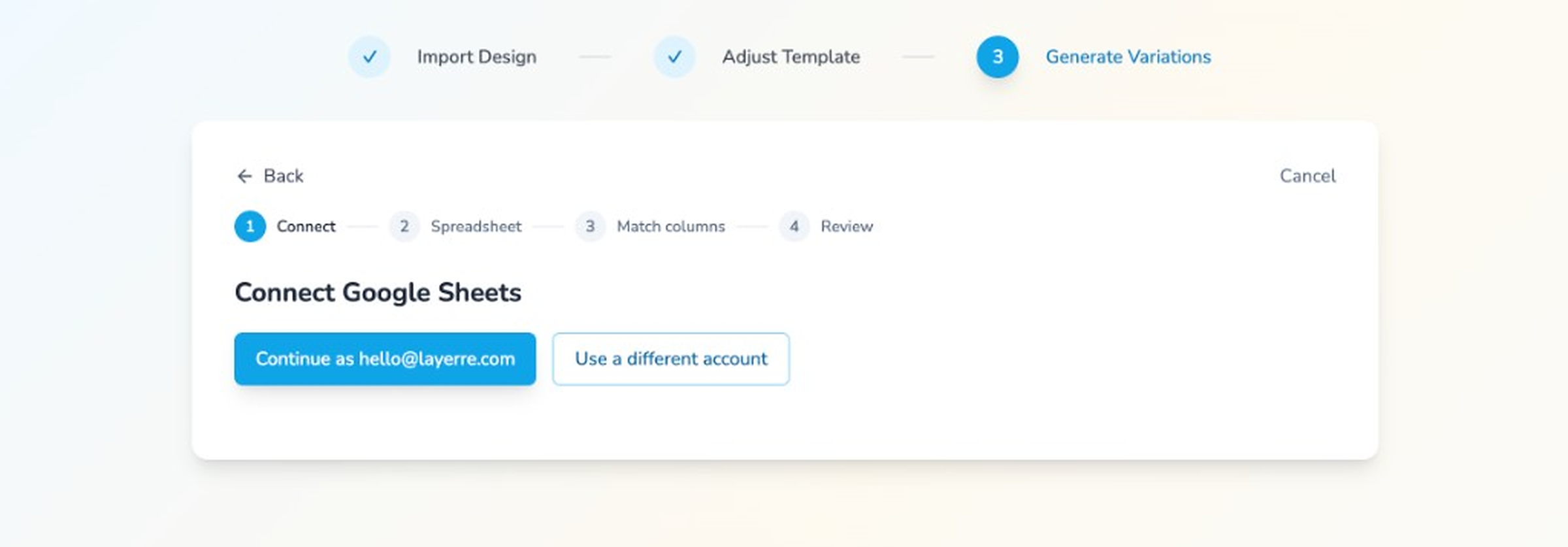
Connect Google Sheets
Continue with the Google account already connected, or switch to a different account. You can change accounts again on the next step.
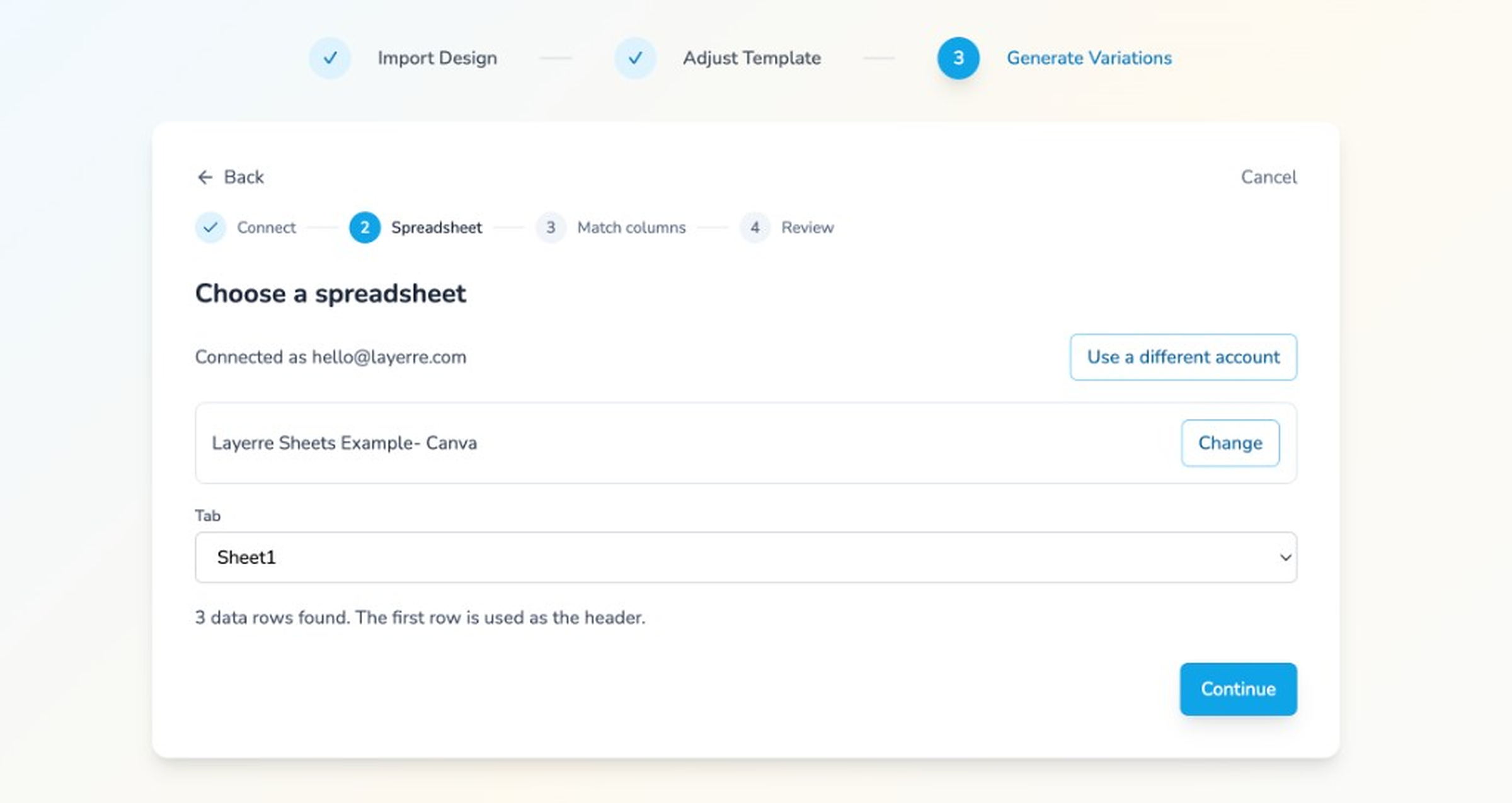
Choose a spreadsheet
Pick the file and the tab. The first row is the header. Layerre shows how many data rows it found under that header.
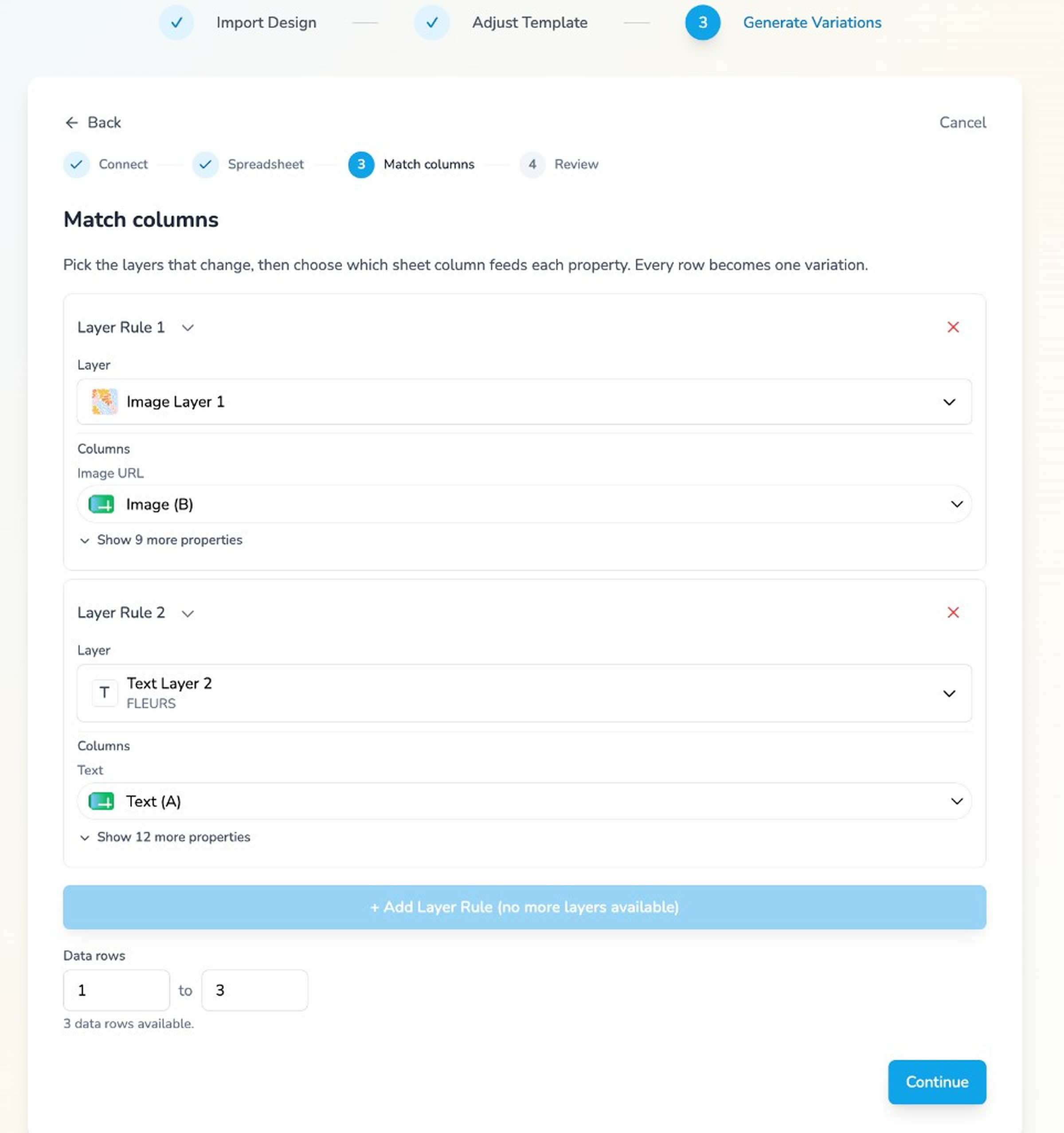
Match columns
Pick the layers that change, then choose which sheet column feeds each property. Every row becomes one variation.
- Image layers can take an image URL column. Text layers take a text column. Open more properties when a layer has more than one field to fill.
- Set a data row range if you only want part of the sheet.
- On a multi-page template, use the page dropdown to match columns on each page.
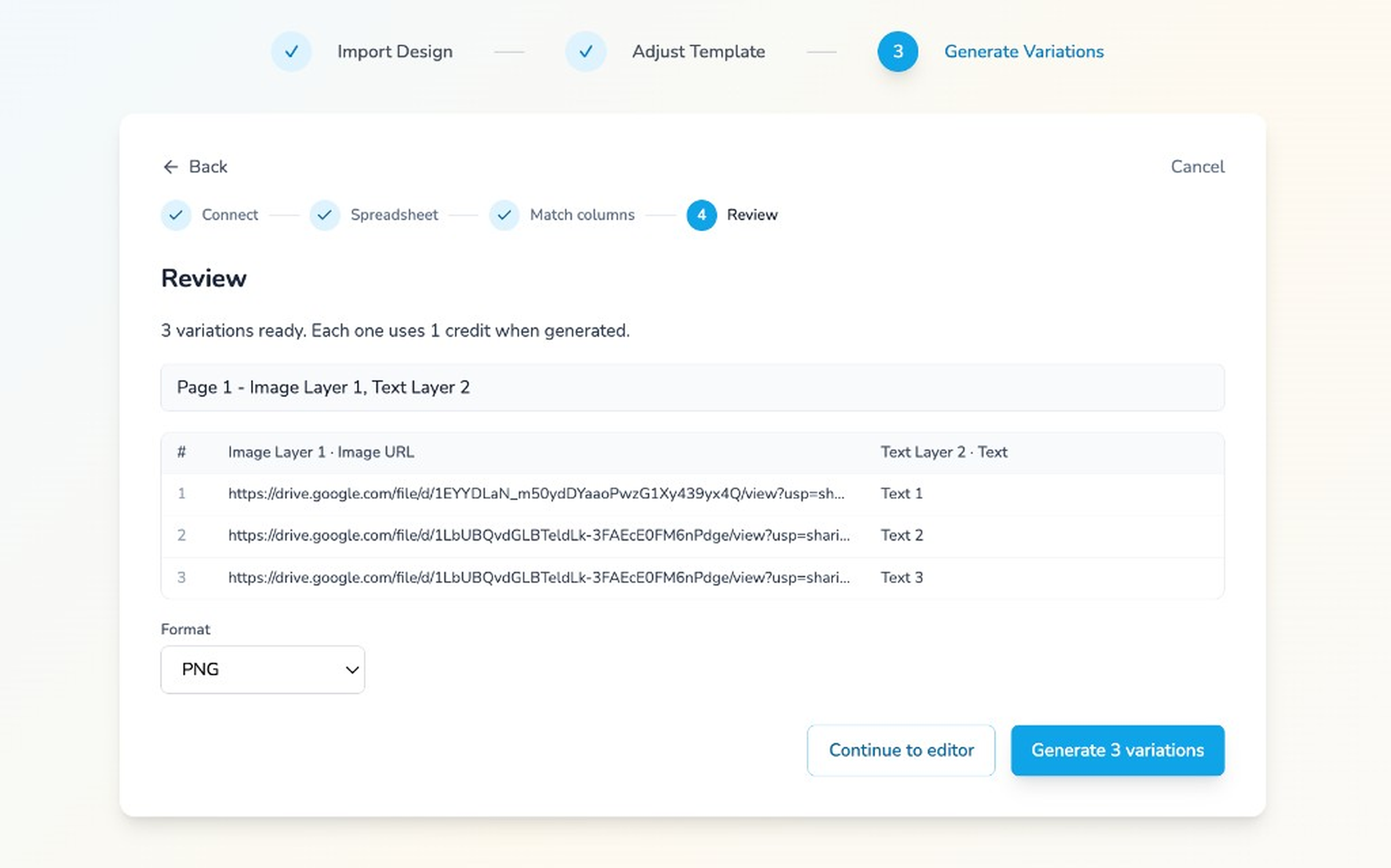
Review, then generate
Review shows how many variations are ready, which layers are mapped on each page, and a preview of the values. Each variation uses 1 credit when generated.
Choose PNG, JPEG, WebP, or PDF, then generate. For PDF, open the PDF settings panel to include every page of a multi-page design or merge multiple row outputs into one file (Plus plan and above). You can also continue to the editor and come back later.
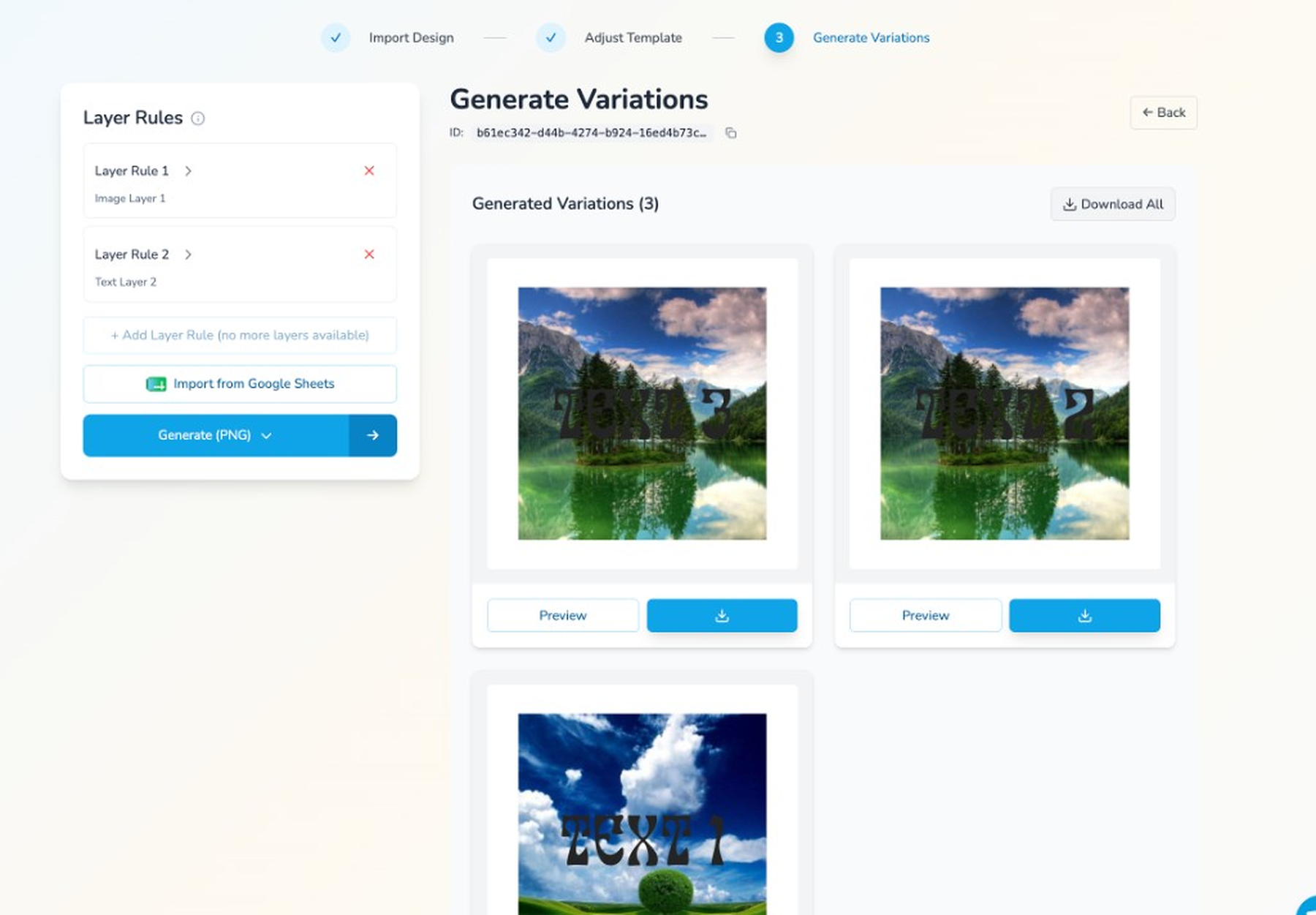
Your variations
Generated variations show up in a grid. Preview or download each one, or download them all.
Multi-page templates and combined PDFs
Sheets import runs through the same Generate variations flow as manual entry, including multi-page Canva designs. Use the page dropdown while you match columns so each page gets its own column mappings before you generate.
When you export as PDF, the settings below the format selector let you:
- Include all template pages — each sheet row becomes one PDF with every page of the design. Pages you mapped use that row's data; other pages keep the template as imported.
- Combine variations into one PDF — merge every row's output on the current page into a single download instead of separate files.
Those PDF options are on the Plus plan and above. For the full walkthrough, see Multi-page Canva imports and Bulk and combined PDF exports.
Try it
Open a template, go to Generate variations, and choose Import from Google Sheets.